These two Base64-Bound Baddies might simplify your yuppie existence for another few weeks.
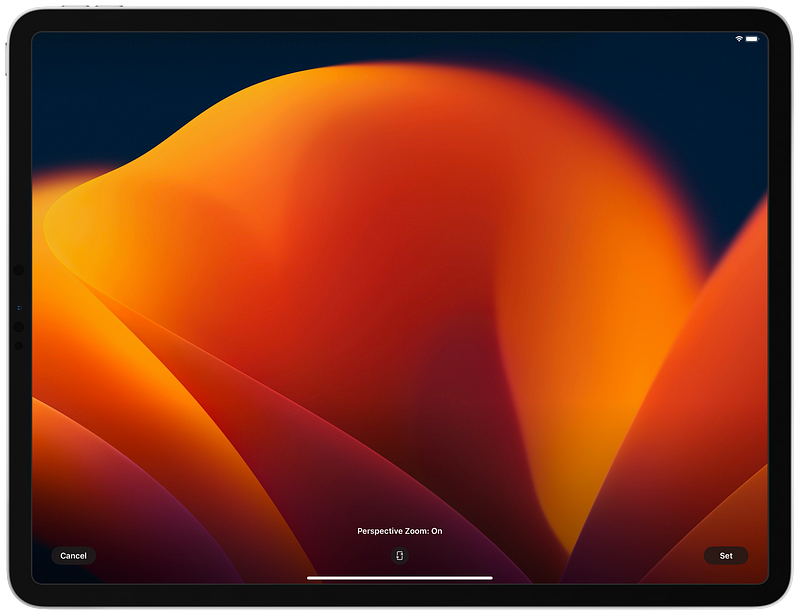
Somehow, I managed to find myself in possession of two Very Large image files: the(?) new dark/light wallpaper pair coming in macOS Ventura. (Here they are in full, light and dark, so we’ve got that out of the way.) I don’t actually remember where they came from, so I hope that doesn’t matter much to you. (Maybe don’t contact me if it actually does lol.)
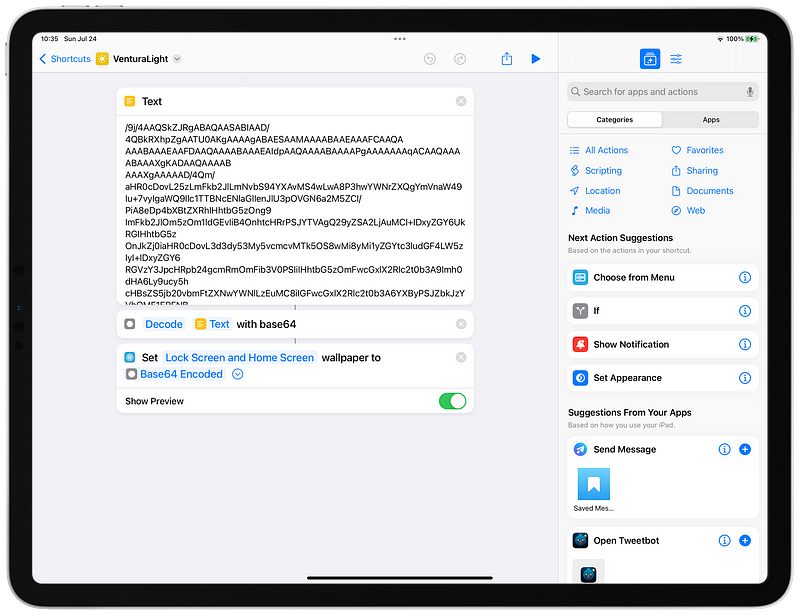
Anyhow, I’ve actually had them for quite a while, but I’ve been meaning to do what I’m trying to tell you about for far, far longer. Basically, files (like images) can be stored within single Siri Shortcuts entirely in plaintext form thanks to the magic of base64 and the now quite familiar Base64 Encode action. I’ve been meaning to “”””ǝ ƃ ɐ ɹ ǝ ʌ ǝ l”””” this capability to simplify my own, sick, superficial, yet craven need to cycle through inordinately huge image files as my desktop backgrounds/wallpaper for literally years, now, but I finally just fucking did it, all for you.
They’re very simple (3 whole actions!) but please keep in mind that they are also gargantuan. Since I’m super smart in a way I definitely love very much, I happen to know that all of one’s Siri Shortcuts are actually stored in a single sqlite file that is constantly being prodded every which way by iCloud Drive’s mania… Keeping these around is not going to help.
A modified shortcut to query live program information from your NPR station.
This past month, MacStories hosted a community Siri Shortcuts contest called Automation April. One of its winners – a shortcut called “What's on KUTX?” credited to Jack Wellborn – caught my eye as a lifelong dependent upon National Public Radio. Via John Voorhees' comment:
The solution Wellborn came up with is ingenious. It turns out that KUTX uses a web API that can return information about the currently playing track. The API is used to drive an ‘On Now’ widget on the station’s website, but Wellborn discovered that they could query the API and get the track information back as JSON. So, they built a shortcut that queries the API when run, returning the info about the currently-playing song.
I began playing around with the NPR API Jack used and discovered quite accidentally that their shortcut could be modified to display current program information for those NPR stations that are not music-oriented, like mine. For the vast majority of the 24-hour cycle, KBIA – “Mid-Missouri's NPR station” – plays news programs, mostly from NPR, itself, supplanted by BBC news late at night.
After some trimming and the addition of the URL for KBIA's Apple Music Stream, I came up with What's on KBIA?, which displays upon run the current program's title as well as a hyperlink to open its distinct webpage. By way of a simple Choose from Menu action, it then prompts one with three options:
Open the program's webpage (again.)
Open KBIA's stream in Apple Music.
Open KOPN's stream in Apple Music. (KOPN is Columbia's community radio station.)
Creating a Shortcut for Your NPR Station
All I really needed to customize Jack Wellborn's original shortcut was my NPR station's “UCSID,“which, for reference, is 5387648fe1c8335046a1d4b4. Upon installation of my What's on NPR? shortcut, you'll be prompted to specify this. Unfortunately, retrieving it via NPR's API requires special authorization, for some reason, but – since we're retrieving data from an NPR station's playback widget already configured to use the API – it's actually as easy as opening your browser's “Dev Tools” or showing on your given station's homepage. If you're unfamiliar, here's a handy guide to doing so on some popular desktop web browsers.
Honestly, though, if you're already on your iOS/iPadOS device and you're willing to install a single, free Safari Extension, I believe you'll find Web Inspector to be the single, simplest method of retrieving your station's UCSID.
Finding your station's UCSID with Web Inspector
Navigate to your station's homepage (ex. kbia.org.)
Start playback of the live stream you'd like to query (may or may not be necessary, depending.)
In the DOM tab, use the search icon to filter for ucsid.
Your station's UCSID is the value for the data-stream-ucsid field.
Depending on how modern your station's website is (I think – I'm supposing, here,) you may or may not find this field. For reference, here is the HTML source of KBIA's webpage from which I drew in its entirety. If you're having trouble, please feel free to contact me however you wish, ideally with your preferred station's identifier/web url.
“Integration” with the Broadcasts app
Broadcasts is a very popular and highly-praised universal Apple application for internet radio streaming. By default, my What's on NPR? shortcut includes an action to begin streaming a station in Broadcasts, but it requires further configuration.
In all likelihood, a search of the Broadcasts Directory for your station's four-letter identifier should yield results. Once you've added your station to your library in Broadcasts, hold its icon (or ^ Tap) to present the context menu (shown in the screenshots embedded above) and select Edit. The exact value for the Name field in configuration menu that results must be supplied as the answer to the second configuration step of my What's on NPR? shortcut. If you do not wish to use Broadcasts, you need only delete or replace its single action in the shortcut's default configuration.
If you've followed along this far, you now have both values you're prompted for at installation of said shortcut, by default: your station's ucsid and its name in the Broadcasts app. You need only continue if you'd prefer to add options for Apple Music and/or VLC.
“Integration” with Apple Music
If you'd like to have a menu option to begin streaming your NPR station in Apple Music, begin by searching within the app for your station's identifier (as shown in the screenshot embedded above.) Use the triple-dot menu's Share Station option to copy its Apple Music URL. (WBEZ's, for example, is https://music.apple.com/us/station/npr-news-wbez-chicago/ra.872998937.) Replace or append to the Broadcasts option with a menu option pointing to an Open URLs action containing the resulting URL. (Refer to my What's on KBIA? shortcut to see this implemented.)
“Integration” with VLC media player
The VLC media player iOS app does not yet have its own Siri Shortcuts actions, but it does have a handy URL scheme which allows one to stream or download the contents of any raw media URL. Using Web Inspector as described above, I was able to find the raw stream URL for KBIA (https://playerservices.streamtheworld.com/api/livestream-redirect/KBIAFM.mp3) quite quickly in the Resources tab whilst streaming live.
To add an option to my shortcut to open the stream in VLC, I would add the following value in an Open URLs action:
Once again, if you have any trouble configuring What's on NPR? – whether that be with finding your station's UCSID and/or “integrating” playback with another app, please do reach out.
Sorry I’m so late with this but I forgot I had something to contribute lol.
My first and only dedicated mp3 player was a first-generation iPod Shuffle — which was not only the most elegant looking USB drive one could find at the time, but — imo — remains the single highest-value mainstream consumer tech product I’ve ever owned. It was a 512mb stick with playback controls and a 3.5mm audio jack at one end. From what I remember, you could just freely store any combination of non-media files and media files in the root separated by a single directory. I was in 5th grade (11 years old) at the time (2005,) and public schools were just beginning to suggest students invest in a flash drive for carrying/storing digital school assignments.
I say highest value because got dang was that thing handy. Idk if I can communicate it, really, but it unified so many functions into one very high quality (and extremely tough) device. (I accidentally put it through the wash at least 3 separate times and it never actually stopped working.) It even came with a lanyard attachment!
Idk if there’s something wrong with me or what but I’m especially sentimental about this thing because I remember wholeheartedly believing and anticipating tech to progress along these lines — design priorities that especially made sense to me. Clever, lean permutations/amalgamations of once single-function products….
I took that photo during a tech podcast years ago — I was doing this same anecdote lol. I find it to be the best idea Apple, Incorporated ever had and yet looking at the everymac page now, I see it was discontinued less than 9 months after it came out. :cry:
The ideal means of On The Go participation in The Tildeverse.
I was completely unaware of the Tildeverse’s origin story – documented in a Medium post by WIRED Editor-in-Chief, Paul Ford – until this year, somehow, though I knew of its existence as far back as 2018. I was living in an unairconditioned Portland apartment, then, and had found myself stuck with Linux for the first time in my adult life. Consequentially, this period of my life became my first true introduction to the Command Line – a space about which I knew no more than the layest layman. Hopping between my ten-year-old, post-corporate system’s shell and the DOS machines I was emulating on it (exploring the history of word processors, mostly,) I believe I struggled through dare I say a Rite of Computing Passage, obtaining the capability (and eventually, the muscle memory) to navigate a filesystem with cd, ls, and (on DOS) dir. It wasn’t until I came home in ‘19 that I discovered the two primary emulated Linux shells on iOS: iSH Shell and a-Shell.
The former is designed to emulate Alpine Linux and has just recently added direct filesystem access via the Files app. The latter is, I’m told, quite extensible, and includes Siri Shortcuts actions that have enabled it to underpin powerful scraping shortcuts like SW-DLT – a sort of frontend for youtube-dl and now yt-dlp. Both are open source, but a-Shell is actually a fork of our subject app, now called “Blink Shell & Code” in the App Store.[^1]
Blink’s tag is “a professional, desktop grade terminal for iOS.” Its landing page touts a “first class iOS experience, with software and hardware keyboard, and the full edge-to-edge experience” experience. On iPad, Blink’s heyday was well documented by the likes of Paul Miller’s 2018 article for The Verge and Fatih Arslan’s 2019 “Using the iPad Pro as my development machine.” These pieces more or less detail different use cases of the exact sort Blink was designed for – “professional” work done using an iPad as the terminal for a remote Linux/macOS machine.
Since I’ve apparently ended up with a primary life mission of doing stuff on my iPhone originally meant to be done on iPads, I’ve managed to find myself an active member of the Tilde.Town community – a place exclusively accessible via SSH, aside from public pages – exclusively through my iPhone 12 Pro Max. I’m not the first to use Blink to do this – note Apreche’s reply to my thread, embedded above – but I suspect I’m the first to spend significant Town Time on my fucking phone, so I thought it might be worth laying out some of the particulars I’ve learned along the way.
It’s important to note that 99% of the use detailed in this guide/account involves the use of a paired Bluetooth keyboard.
Locally
First, Blink’s settings menu is accessed by typing config and/or ⌘,. Unfortunately, there’s no method of installing the entire selection of available fonts or themes – you’ll have to do so one at a time, though you can optimize the process by learning/copy-and-pasting the url scheme for the fonts/themes directories on their respective repos. I especially recommend CLRS, Man Page, and MonaLisa, but this Post is saturated with too many mocked up screenshots of Blink themes to reasonably continue that list any further.
Compared with its fork, a-Shell, Blink’s local UNIX command list is a bit sparse. It’s accessed exclusively with TAB. Where a-Shell has pickFolder, Blink has link-files, which does effectively the same thing: the Files app is opened, prompting you to select a folder, which will become visible and accessible in the command line.
Linking The Psalms’ GitHub Repository in Working Copy with link-files in Blink had profound results. I was offered a brief glance of that enhanced productivity command line evangelists always seem to be on about, if only because the files and directories were color-coded by type so distinctly. open also somehow lead to swifter previews than in Working Copy, despite that app’s brilliance.
Some other particularly intriguing standouts include say, which unfortunately does not use your preferred Siri voice to speak aloud text, but rather the oldest there is. facecam will open a manipulatable circle of your device’s front-facing camera view, as shown in the screenshot embedded above. openurl will instantly open a formally-formatted web URL in Safari, which can come in handy. pbcopy and pbpaste really do manipulate the iOS system clipboard, which I probably find more impressive than I should. code is the newest to the bunch and will open a local instance of GitHub Codespaces(?) If this is truly useful on iPad – which plenty of positive feedback on social suggests it is, to at least a few human beings – it is barely usable on iPhone, which is to be expected, really.
Blink’s own “UNIX Command Line Tools Roundup” does an okay job of outlining the rest of the basic networking and file management commands included that act locally, though I’ve still been unable to find out what skstore does. xcall opens x-callback-URLs, though I’m still trying to figure out what the command’s options are. ed the ancient command line text editor is available, though I’ve yet to learn to use it, and uptime appears to be actually accurate? Being able to run whois locally on iPhone has its uses, especially given the aforementioned support of pbcopy. whois bilge.world | pbcopy copies The Psalms domain registry information to the iOS clipboard in a flash.
Keyboarding
To its credit, I think Blink’s landing page represents the most explicitly pro-keyboard literature I’ve ever seen for an iOS app. From my fairly extensive use, its Bluetooth keyboard support fully reflects these declarations, even on iPhone. Out of the list of shortcuts you see in the screenshot embedded above, Share Selection is by far the one I use most, usually to open a link from the Tilde IRC chat. If I’m lucky/accurate, double tapping said link will select all of it and only it.
After a link is selected – which sometimes involves rotating the phone and/or zooming far out to get longer URLS in a single line – I’m able to call it up in the iOS sharesheet with ⌥U, then open it in Safari with a Siri Shortcut I’ve placed there entitled “O P E N.” Or – in the case of a direct link to a file – I could use another shortcut of mine just below it, called “DOWNLOAD,” which uses the Get Contents of URL action to download files directly to my Downloads folder in iCloud Drive. Googling a selection (⌥G) has come in handy once or twice. I tried the Stack Overflow shortcut for kicks, but was meant with an endless string of CAPTCHA requests.
An extraordinary feature of Blink’s which I originally misunderstood and have just begun to play with: custom key presses. In Config ⇨ Keyboard ⇨ Custom Presses, one can assign any text that can be hex encoded (Base16) to a keyboard shortcut. I’ve created a Siri Shortcut that requires the free version of GizmoPack to aid myself (and you, hopefully,) in quickly converting plain text commands to this format. In the screenshots embedded above, the shortcuts listed on the left correspond in order with the commands listed on the right. You’ll note I’ve begun to attempt assigning quick keys to my most commonly typed-out commands.
Remotes with SSH and Mosh
If you’re entirely new to SSH as a concept, I’ve found no better introduction than Tilde.Town’s own SSH Primer. I screwed up my first attempt at obtaining a key, but Town Maintainer vilmibm kindly responded to my Twitter DM in December of last year asking to instate a new key. I can’t remember whether or not I generated it originally within Blink, but regardless, the app’s key management is as intuitive as I’ve seen.
One of my unexpected favorite bits about Blink is its autocomplete feature which applies to both “commands and hosts” as quoted from its singular mention in the docs. There very well could be a better means of typing out absurdly long filenames in other terminal emulators, but I’ve personally not come across anything remotely like this magic of Blink’s. Especially for someone newish to the command line like myself, its autocomplete occasionally borders on “intelligent autosuggestion” without actually crossing the threshold in an irritating way. Once I configured Tilde.Town as a host (with the local name Tilde.Town,) all I need do to connect is begin to type ssh T or mosh T (ssh keys == mosh keys, which I wish I knew weeks ago) and TAB to complete the full ssh Tilde.Town or mosh Tilde.Town commands.
Once you’ve connected to Town, you should take advantage of Blink’s Files app integration by adding a location at the bottom of its entry in the Hosts menu. This adds Blink to the master, root list of file providers in the app. From there, all of the Files app’s features (including drag-and-drop) will apply to Tilde.Town as long as you’re sustaining at least one connection via ssh or mosh.
To illustrate, here’s a wee, one-take tutorial on uploading images this way:
The IRC client TildeTown uses is called WeeChat and – especially if it’s been as long for you as it had been for me – you might find (as I did) learning the ropes to be a bit dubitable. I’ve duplicated the full User Guide for your consideration. I got stuck at the concept of switching buffers, so my Big Pro hint is to start off running /buffer 1 followed by help. In order to display the chat even remotely readably in portrait mode on an iPhone, you’ll need to remove the buffer list by hiding it. (Try /help bar in the first buffer.) You’ll also need to zoom out a bit and set the display mode to Fill via the menus that appear with a three-finger tap anywhere on screen. To achieve the look shown in the screenshot embedded above, you’ll need to hide a few things, but I’ll come back to those specific commands in a sec.
Assuming you intend to stay connected to Town IRC On The Go, I’d advise always starting your intended chat window with mosh, which – through a whole bunch of alchemy I’m incapable of understanding – establishes a much more flexible sort of connection that’s actually realistically dependable from within the uncertain world of a backgrounded iPhone app. Optionally, the geo command can be used to force iOS into allowing Blink a more genuine background running state with geo track. Additionally, geo current displays a nicely-formatted set of location information:[^2]
As you’d expect, the persistence allowed by this feature – which does, indeed, extend to remote files access in the Files app as you move about the world – comes at a significant consumptive power and resource sacrifice. If you parse the slapdash language in the docs, the implication is that you should only need to use the geo command to make ssh connections persistent, not mosh connections. Since encountering this wording, I’ve yet to have an opportunity to explore the real world truth of this supposition because I have only my rotting legs to propel me around, these days.
If I remember correctly, I once found a surprisingly capable (for the time and circumstances) iPhone IRC app in Colloquy’s iPhone OS offering, though it appears to have fallen far, far out of support, now. LimeChat’s iPhone app isn’t listed on the App Store anymore and its landing page proudly touts support for iOS 4 multitasking!
Connections are kept in 10 minutes after going to background.
My memories of computer use from that time are ever so vague, but after just a brief junket to the era’s surviving app literature, some abyssal images within me were stirred. I suspect I tried every possible solution as I’ve always tended to, even back then, on my first generation iPhone and then my 4S. I remember Colloquy being the most tenable, but far from persistent, of course. As I recall, one could maintain a conversation as a passenger on a car trip, for instance, but remaining ambiently, eternally Logged In – as is the ancient custom of Internet Relay Chat – was too far out of reach to even be of consideration.
To be honest, I still find the whole idea unnatural, and I’m not alone, but I can promise you that running Blink on a recent iPhone with the average American cellular connection is as close to the full WeeChat experience as is possible on a handset, today, for whatever that may be worth to you. Thanks to some incredibly helpful new TildeTown friends, its copious configurability pivoted from an insurmountable, puzzling ordeal to a never before conceived of solution. If you haven’t already, skim the actual conversation contained within the pre-header screenshot, above.
WeeChat Configuration
The following is the precise set of commands involved in making WeeChat look as the screenshot does, though in no particular order. As m455 pointed out, fset is the tool that lists available configurable options and their current status in a linear way. The default of the second option in the list is apparently 11, but I fiddled quite a bit to find 9 more optimum.
fset
/set weechat.look.prefix_align_max 9
/bar hide bufflist
/bar hide fset
/bar hide title
/bar hide nicklist
/set weechat.look.buffer_time_format "%M"
If you eliminate the value of the very last command (so just “”) and add /bar hide status to the list, you’ll end up with a more minimal-looking, timestamp-less experience:
If indeed there is a “reasonable” configuration for command line IRC display on a telephone in the year 2022, surely, this is it.
Town Television
Due largely to its primary market of iPad-bound developers living and working in remote Digital Ocean droplets, significant effort (I assume) has been expended in making Blink Shell one of the few iOS apps which usably supports external AirPlay displays, even, yes, on iPhone. As far as I can tell, all of the iPad options in the appearance settings menu seen below have also functioned in my tests on iPhone, casting an entirely separate set of Blink windows to my mom’s Huge Ass Samsung television in ten-eighty pee.[^3]
If you’ve somehow found yourself this far, you’re probably looking for the keyboard shortcut⌘O, which switches your currently active cursor between the device and the external display. “You can also move windows between iPad and External Display with ⇧⌘O,” say the docs. Other considerations I’ve discovered through experiments with this: You can lock the phone with the external display running, but it won’t update, even with mosh or withgeo track. AirPlay will also cease after a period I couldn’t be bothered to determine, so if anything, this is more of an inconvenience than a feature.
Other Considerations
Blink has a URL scheme – blinkshell://run?key=[YourKey]&cmd= – but it’s not particularly useful, largely because it’s for the moment left without any real documentation. I was able to create a Drafts action that runs one’s current selection as a command in Blink, but the app doesn’t appear to like it very much, if you know what I mean. Blink also integrates with iOS system notifications – as exemplified in the screenshot embedded above – and they do work consistently with mentions in town chat, even outside the app, though I’ve yet to see one including any useful information. You’ll know that something happened, maybe. Recently, the app has taken to displaying a nondescript notification every time I re-open WeeChat, even without new messages since the last time I opened it.
Somehow, upon logging into macOS for the first time since installing all the aforementioned themes in Blink, I found the same themes available in the Mac Terminal. I’m sure there’s an explanation involving hidden iCloud Drive folders – and I can’t imagine being anything but pleasantly surprised to find oneself flush with more Terminal themes – but it’s still worth a heads up.
Philosophically, one might declare the practice I’ve outlined here to be definitively against everything the Tildeverse is about – the small web, Linuxy stuff. Bringing this up in TildeChat a few times, I was met only with acceptance. In fact, acceptance, curiosity, and support is all I’ve been met with throughout my first few months as a townie, and I hope this Post encourages/aids more folks to come join me in this shared computer. You can find the sign-up form for TildeTown here and the corresponding GitHub Issue for this post (with a bunch more screenshots) here.
[1] Blink’s icon is perhaps my most favorite of any application, ever.
[2] Yes, that is my real location information and yes, I did include it intentionally. Please come kill me as soon as possible. Also, “DOR” is apparently an acronym for “Dilution of Precision,” which is a mildly interesting measurement to read up on.
[3] As the screenshots I captured suggest, anyway. Obviously, I do not posess the means to test the true resolution display to mine eyes.
Imagine running shortcuts from anywhere you can place a link.
There seemed to be a bit of confusion regarding a shortcut I posted on RoutineHub a few days ago entitled “Generate Shortcuts Run Links List,” so I thought I’d attempt to overview how I’ve come to use Shortcuts’ URL scheme as my primary method of calling shortcuts across both iOS and macOS.
The basis of the whole shit is shortcuts://run-shortcut?name= and shortcuts://x-callback-url/run-shortcut?name=. Using these along with URL-encoded shortcuts titles (for those containing a space,) we can create links that will run shortcuts from anywhere on iOS or macOS as hyperlinks. These days, this is how I run most of my even semi-regular-use shortcuts, largely from my first Dot in Iconfactory’s Tot.
With a few exceptions, all the links you see in the above screenshot above “Drafts Instrument Panel” are shortcuts run links of the same type. Most of these, I typed out by hand with a TextExpander snippet. Here’s what the mess looks like underneath:
I had a bit of an issue creating the shortcut, itself. Though Shortcuts includes a native URL Encode action, I couldn’t seem to get it to reliably generate URL-encoded shortcuts names, which is why I inserted the Text Case action, instead.
A quick review of Apple, Inc’s first venture as a textile company.
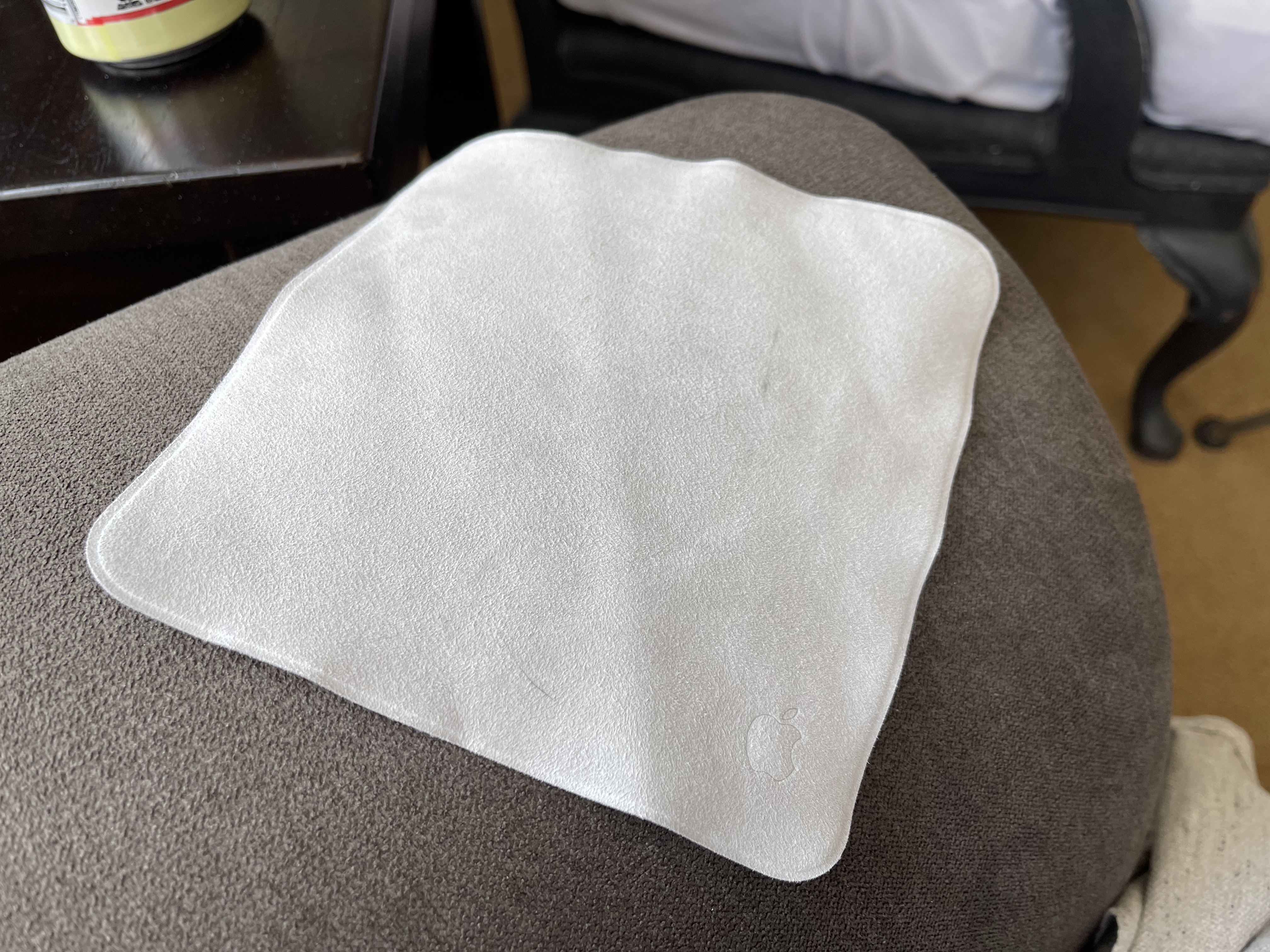
Now that Apple, Incorporated is a textile company, I thought it might be pertinent of me – someone with incredibly filthy hands – to review its first textile product, the Rag. Back in my day, we were taught not to touch the screen. It’s not good for it, they’d say. Now, that’s all we do, and it makes me profoundly uncomfortable. I have used a fleet of microfiber cloths (ashamedly sourced from Amazon until recently) to rigorously scrub away the CRUD that results from my disgusting, gorgeous hands touching anything for any duration. I also use Vinegar-based Windex (which is just vinegar,) which has definitely eroded my 12 Pro Max’s Oleophobic coating away entirely. It smells wonderful, though.
What’s brought me great grief since the Apple Rag’s debut, notably, have been the discussions I’ve heard on Apple-adjacent podcasts like Connected[^1] post-release of the Rag, detailing just how sparsely Touchscreen Pros like Federico Viticci actually clean their Pro Screens. Less than once per week, if I recall correctly. I asked this question in the MacStories Discord to only a single response:
Never, really. Sometimes with the side of my hand, but that's only when I really notice the screen being dirty.
I’m assuming silence from the rest of the crowed indicates embarrassment. I clean my 12 Pro Max’s screen once every two hours, bare minimum.
Methodology
I must admit – it took me a bit to understand the correct methodology for the Apple Rag. At first, I was trying to use the Rag like I’ve used other microfiber cloths, but it’s uniquely suited to flat rubbing upon mostly already cleaned glass screens, which makes sense, I suppose. Unlike regular microfiber cloths, its surface does not lend well to liquid cleaning solutions or scrubbing non-glass surfaces. Nor does it to cleaning truly grubby surfaces. As far as I know, it’s not washable – I probably shouldn’t have thrown the packaging away, but I didn’t expect to review it.
— David Blue ※ (ɥ̶͇͖͉̠̰̟͔̒́̆ͧ͋̀̀ ????) (@NeoYokel) February 26, 2022
I would advise a strong, rotational approach under moderate pressure when using the Rag on your device’s screen. I would not advise you use it on your face or hands. I also would not advise you use it to clean your dog’s paws after a muddy bout. More reasonably, it’s not even all that great for cleaning glasses lenses. (It might just be that mine are particularly dirty.)
Conclusion
It sounds a bit silly, but $20 is actually a ridiculous amount of money to spend on a single microfiber cloth. I’d link you alternatives, but I’m committed to never sharing Amazon links on this here blog. For what it’s worth, the Apple Rag appears to have a strong resistance to liquids (they just fall off,) and a truly unique competency at cleaning glass screens.
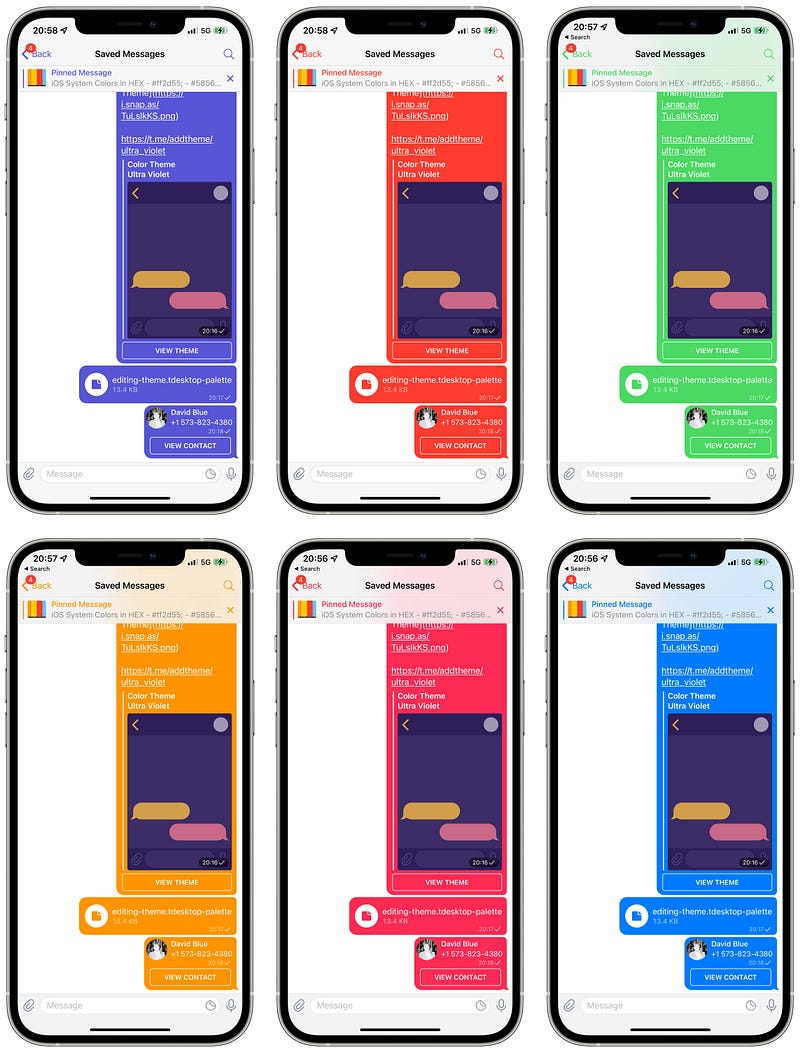
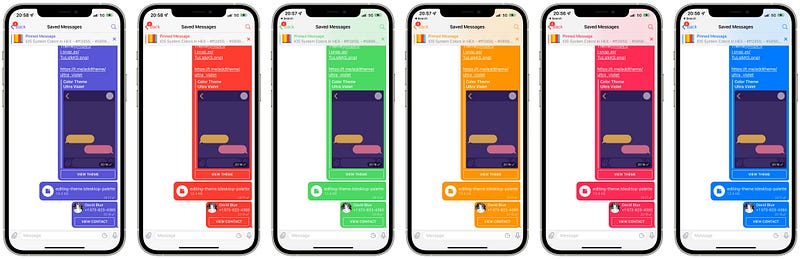
Make no mistake — I did virtually nothing to create the following themes, nor do I know anything about Telegram theme development, generally. Frankly, I shouldn’t have even taken the time to whip *these* up, but I wanted to at least dip my toe in the experience for [a strangely sentimental essay I’ve been working on](https://github.com/extratone/bilge/issues/228) about the service’s service in my working life.
The one thing I *did* do is track down the most accurate translation of [iOS’ core system colors](https://developer.apple.com/design/human-interface-guidelines/ios/visual-design/color/) in hex I could find, which I spammed in each reasonably-generateable format all over every dead end group chat and channel I once created and have (shamefully) subsequently neglected and forgotten on this service.
— color-pink: #ff2d55;
— color-purple: #5856d6;
— color-orange: #ff9500;
— color-yellow: #ffcc00;
— color-red: #ff3b30;
— color-teal-blue: #5ac8fa;
— color-blue: #007aff;
— color-green: #4cd964;
I originally started using the [Big Boy Editor](https://themes.contest.com) and immediately realized that there is no apparent means of translating the iOS themes I’d found recently into .tdesktop themes without 1.) implementing an unofficial, but highly tedious translation matrix between the entirely different formats, or just 2.) fuckin eyeballing it.
I started with [perhaps the best light theme for this app I’ve ever found](https://t.me/addtheme/tgbetacore) in terms of ultimate legibility in blinding sunlight, loading its (apparently early iOS-inspired?) style as a duplicate in the Bitch Mode “editor” found within the iOS app, itself. Then, I simply replaced its singular hex color asset with the equivalents you see above in the three classes to which it was assigned…
…and now I’m a real life Software Developer™! How amazing is tech in 2021, right???
Please do feel free to act upon literally any sort of compulsion to contact me however you wish. [This link](https://bit.ly/whoisdavidblue) will pull up my full VCF contact card on a mobile device.
in This Present Time I can have regular interactions with my adolescent celebrity crush that I *actually* would not be able to convince my 14-year-old self are real. not because of their significance but the opposite.
calling her mom is like... the only even remotely reasonable outcome, btw. she *is* a mom several times over, now. and 46.
and by "crush," i mean... at least 30% of my total cumulative mental energy was spent repeating "I am so in love with Sienna Guillory" for *years.*
imagine telling that person "one day, you're gonna wish her happy mother's day every year in a text box. she will call you 'bub.'"
I'm pretty sure it would make him suicidal.
(but the outfits would save his life at the last moment.)